1 min
1 min 
When shoppers land on a product page, one question runs through their minds: “Can I trust this?” Reviews answer that question faster than any product description ever can.
Top brands design their product pages around customer feedback. They place ratings, real photos, and strong review highlights where buyers naturally look before making a decision.
If you want your product page to sell like theirs, you need more than just reviews; you need the right structure.
In this guide, you’ll learn exactly how to show reviews the way top brands do and turn trust into action.
Why Showing Reviews on Your Product Page Matters
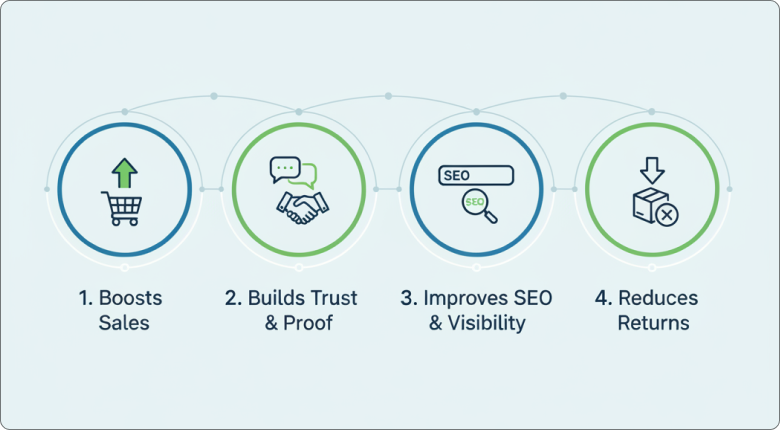
Displaying reviews on your product page is one of the most powerful tools to bridge this “tangible gap” in online shopping, where customers are uncertain and confused about making a purchase.
Your reviews are the strongest proof of your reliability and trustworthiness because people need proof before buying anything. Reviews tell them what real customers experienced.
Beyond just aesthetics, reviews act as a multi-dimensional tool for business growth:
Increases Conversion Rates: Going from zero to just five reviews can increase a product’s purchase likelihood by 270%. Shoppers who read reviews are more likely to convert; roughly 92% of consumers hesitate to buy when a product has no reviews.
Builds “Social Proof” & Trust: About 88% of buyers believe online reviews as much as personal recommendations. Rather than flawless 5-star reviews, a balance of positive and negative reviews gives your business a sense of authenticity. Customer photos and videos are powerful social proof.
Boosts SEO & Visibility: Search engines favor sites that have fresh, unique content. Customers may also use the same “long-tail” keywords for reviews that they would for search engine queries.
Lower Return Rates: Reviews assist in setting proper expectations for future customers. By understanding the proper “fit” or “color” beforehand, customers are much less likely to return the product.
5 Ways to Showcase Your Reviews
Implementing these five strategies can transform your product page into a high-converting “trust engine.”
1. Star Ratings and Review Count Above the Fold
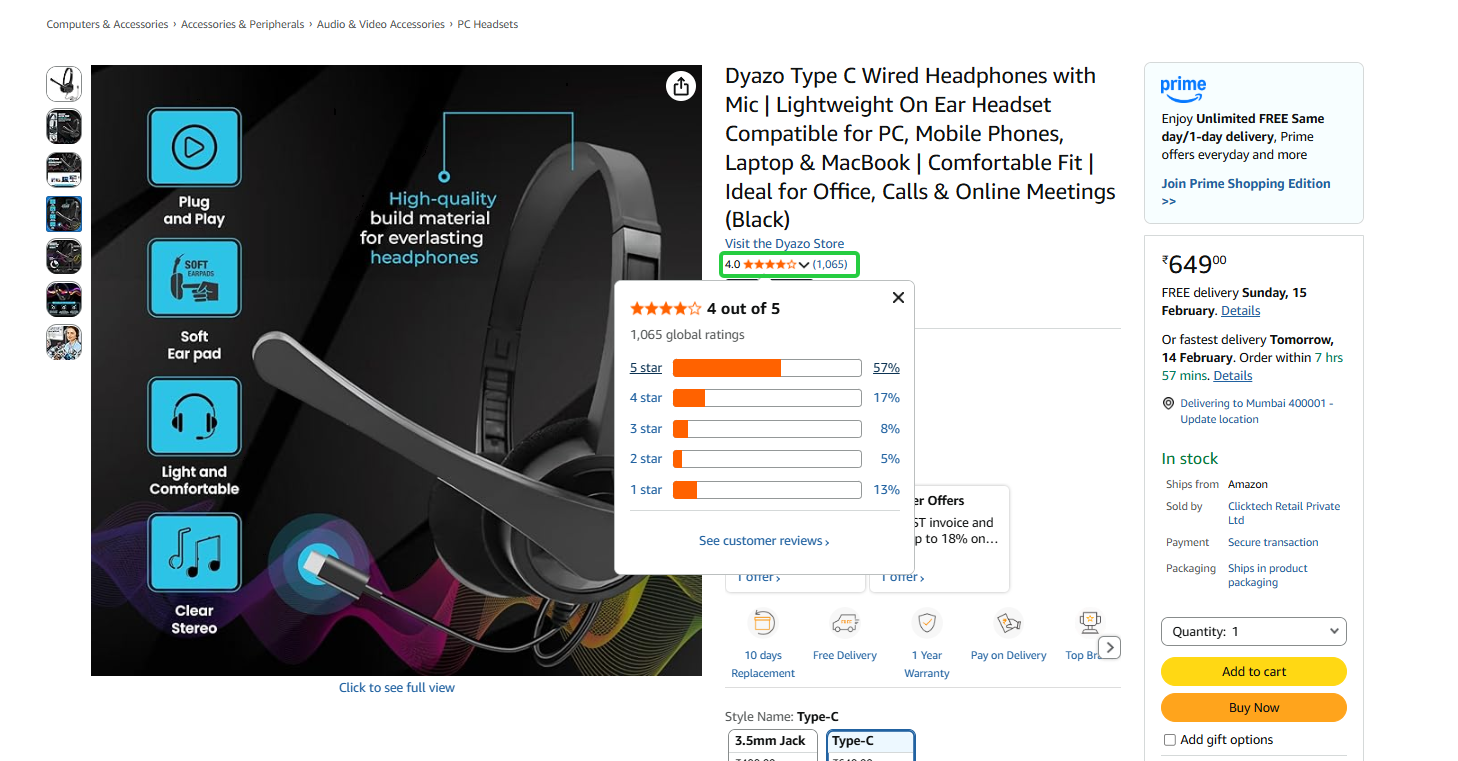
To gain visibility and thus trust, display an average star rating (such as “4.8/5 stars”) and total number of reviews close to the product name or price. This ensures that social proof is among the first things a customer notices.
Make your stars clickable so that they serve as an “anchor link,” taking the visitor straight to the reviews section below.
2. Highlighted Review Snippets in the Product Gallery
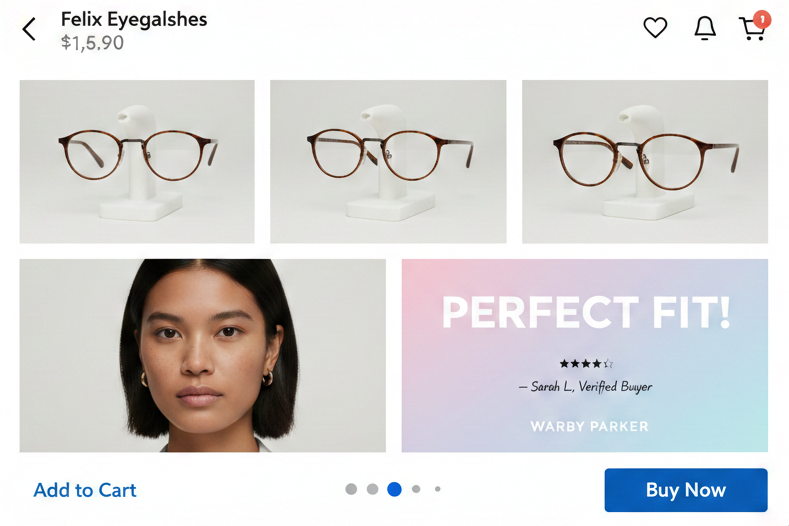
Today’s consumers view product galleries before they read product descriptions. Incorporate a “top review” or a highlighted sentiment snippet as a slide in your main product image gallery.
Companies such as Glossier and Warby Parker incorporate customer quotes such as “Perfect fit!” or “Exactly as shown” into image galleries. This strategy draws attention during the visual exploration phase of shopping.
3. Full Review Section Below the Product Details
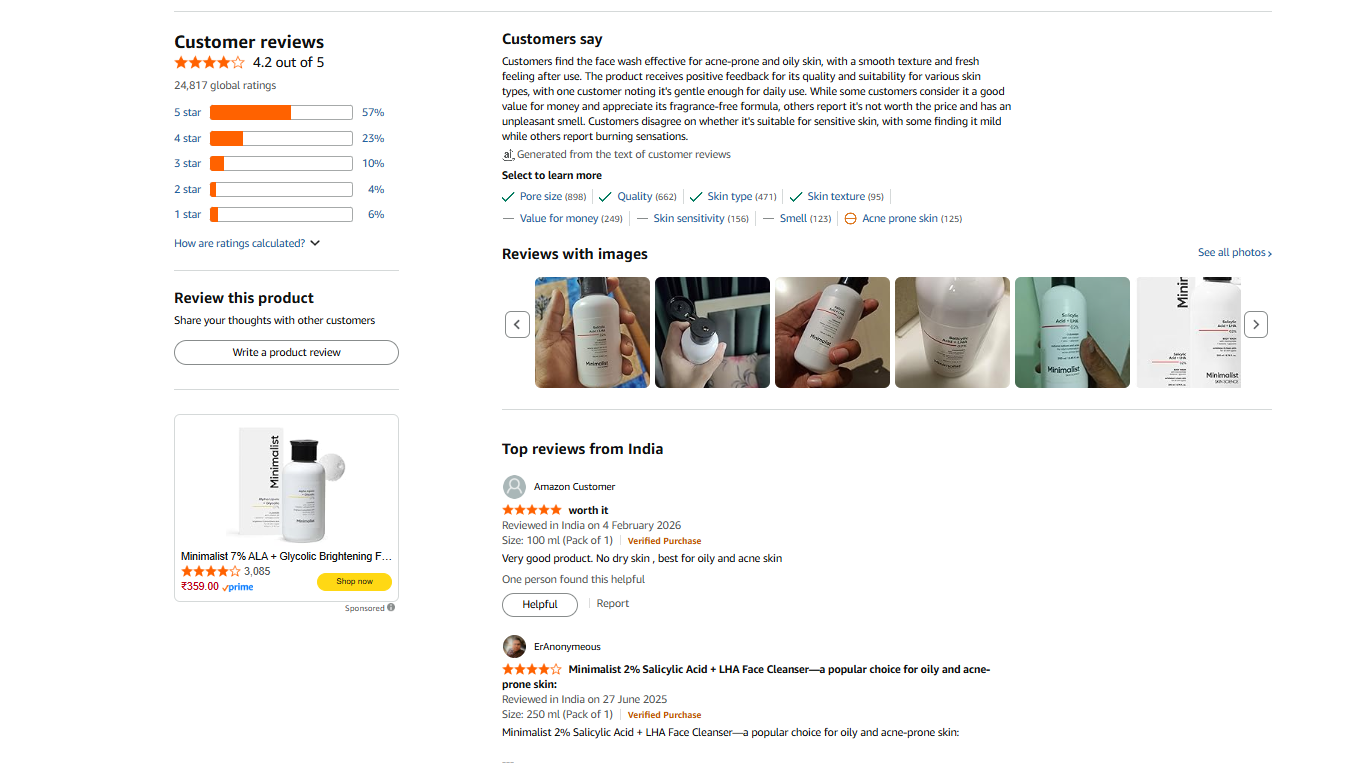
Once a customer is interested in the features, they look for confirmation from peers. This section should be more than just a list of comments.
Add a search bar to the reviews so users can find specific terms such as “sizing,” “durability,” or “shipping”.
Include these elements:
- Filter by star rating (1-5 stars)
- Sort options (Most Recent, Most Helpful, Highest/Lowest Rating)
- Search within reviews functionality
- Verified purchase badges
4. Photo & Video Reviews from Real Customers
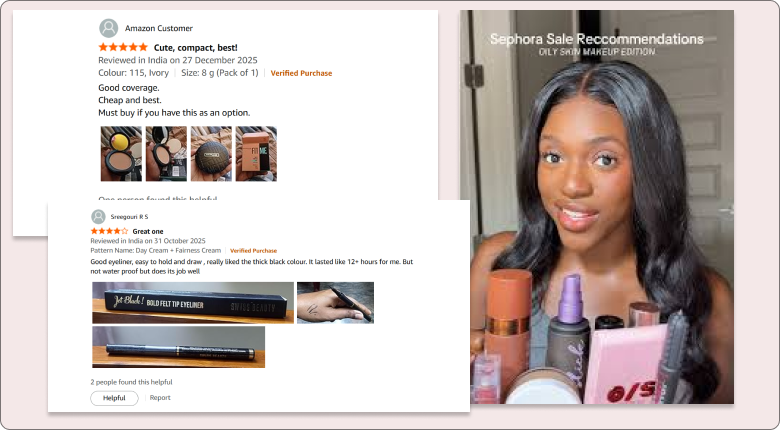
User-generated content (UGC) is often more influential than professional studio photography or a review description. Studio photos look polished, but customer photos build trust.
Photo reviews convert 5x better than text-only reviews because they show products in real-world contexts. Video reviews take this further by demonstrating actual usage.
Visual Walls: Use a tool like WiserReview to create a “Wall of Love” gallery that users can browse.
5. Smart Callouts: Best, Most Helpful, and Critical Reviews
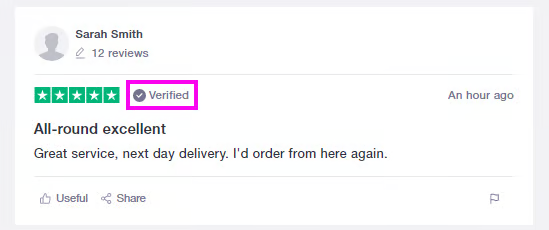
Employ the use of callouts such as “Most Helpful” and “Verified Buyer” to point out which reviews customers can rely on. This will enable customers to easily distinguish between helpful reviews and random comments.
Essential Trust Badges
- Verified Buyer/Purchaser: These badges will give customers confidence that the review is from actual customers who have purchased the product and not just automated robots.
- Most Helpful: This badge will point out reviews that have been voted as the most helpful by other customers.
- Reviewer Expertise: Badges such as “Frequent Reviewers” or “Expert Reviewers” will give more credibility to the review, especially if it is a technical product.

Show reviews that drive sales
Collect, manage, and display product reviews with smart widgets, photo walls, and trust badges — all in one tool.
Start Free →How to Show Reviews on Product Page (Step by Step) Using WiserReview
WiserReview helps you collect and display product reviews in the right places with no technical setup required. You can add star ratings, review widgets, and photo reviews in minutes. Follow the steps below to show reviews on your product page.
Step 1: Install WiserReview and Import Your Reviews First
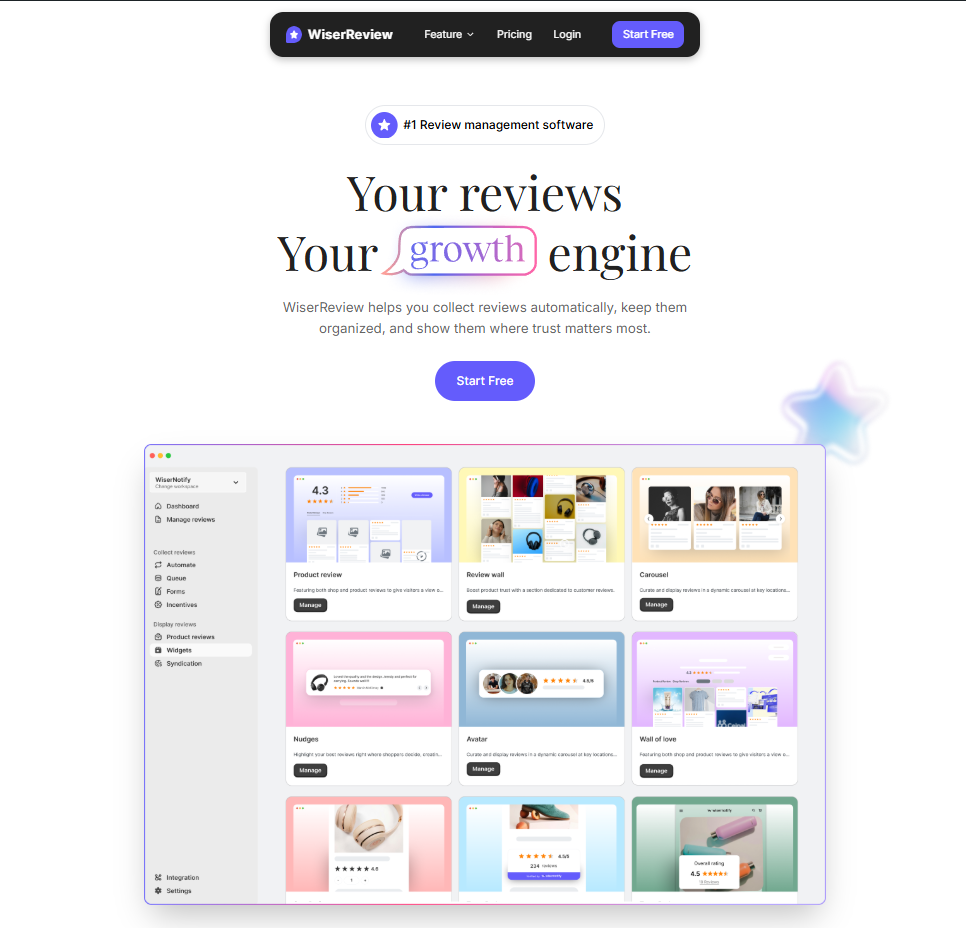
Log in to your WiserReview account, and you’ll see your WiserReview dashboard.
Step 2: Create and Customize Your Widget
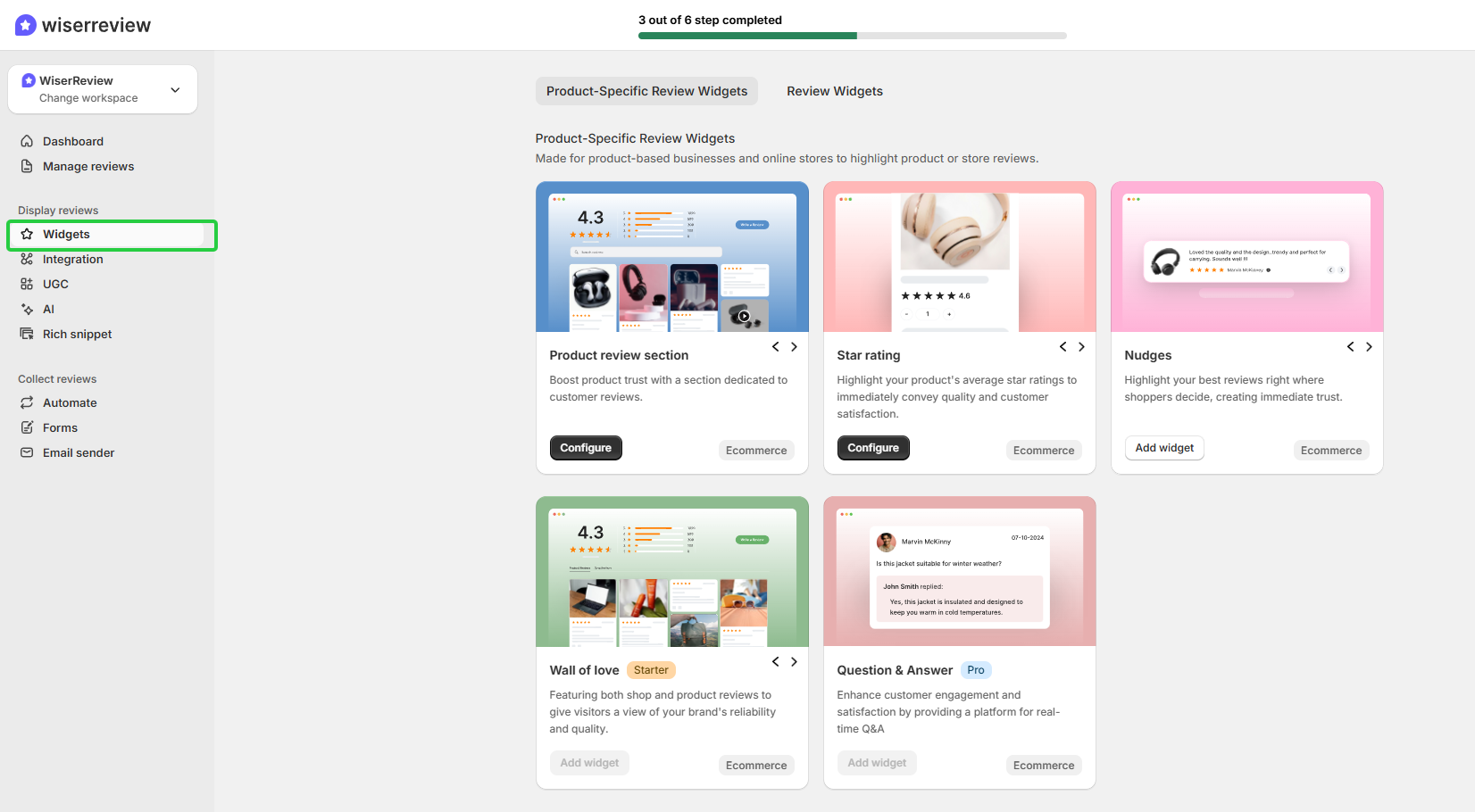
Navigate to the Widgets section in your WiserReview Dashboard.
Click Create Widget and select “product review specific widget” or “Review widget”.
Click “Configure” to customize your widgets according to your needs.
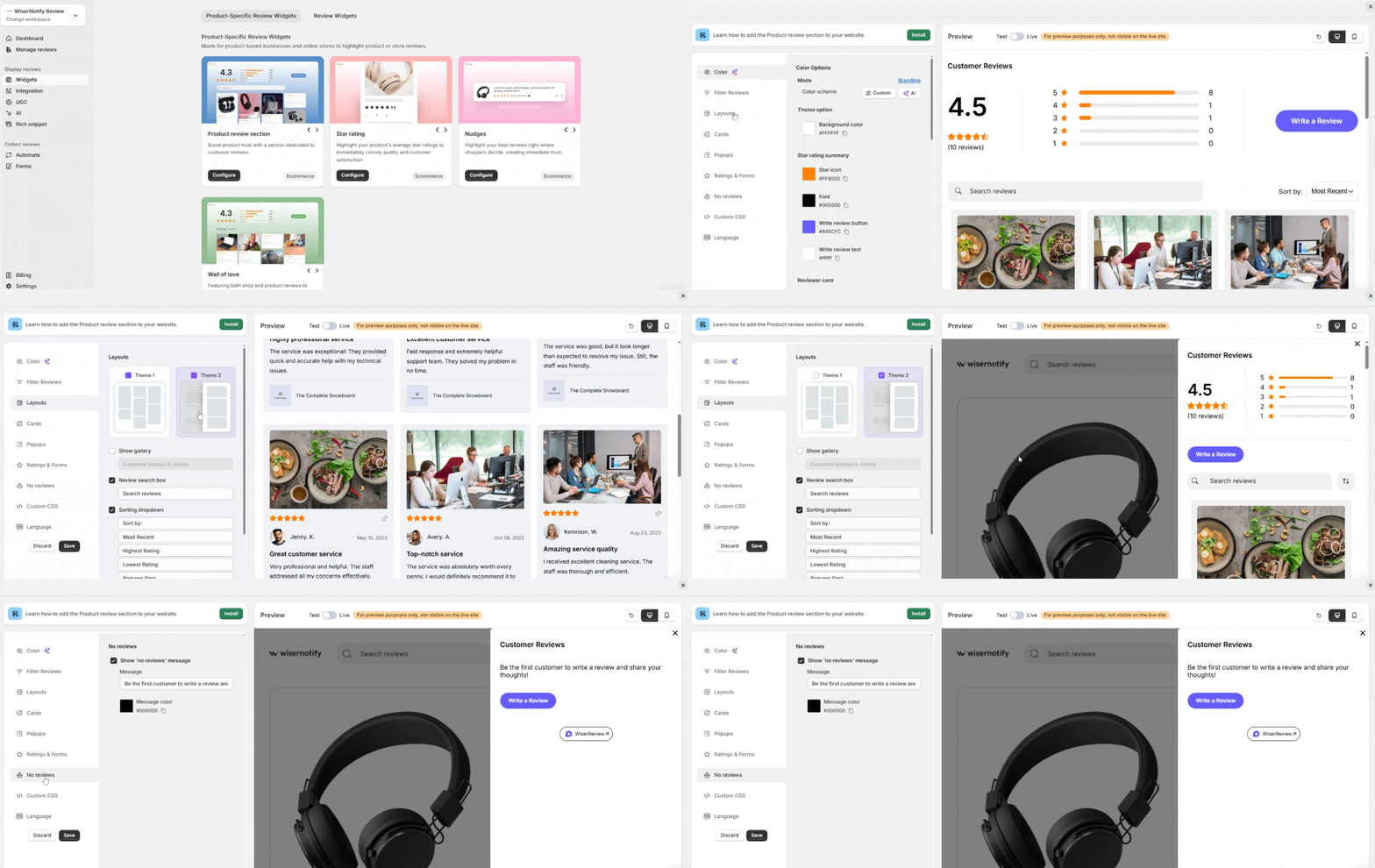
Inside the widget settings: Select Product Filter, Choose specific product (or use Product ID), Select rating filter (optional). Save.
Step 3: Install the Widget
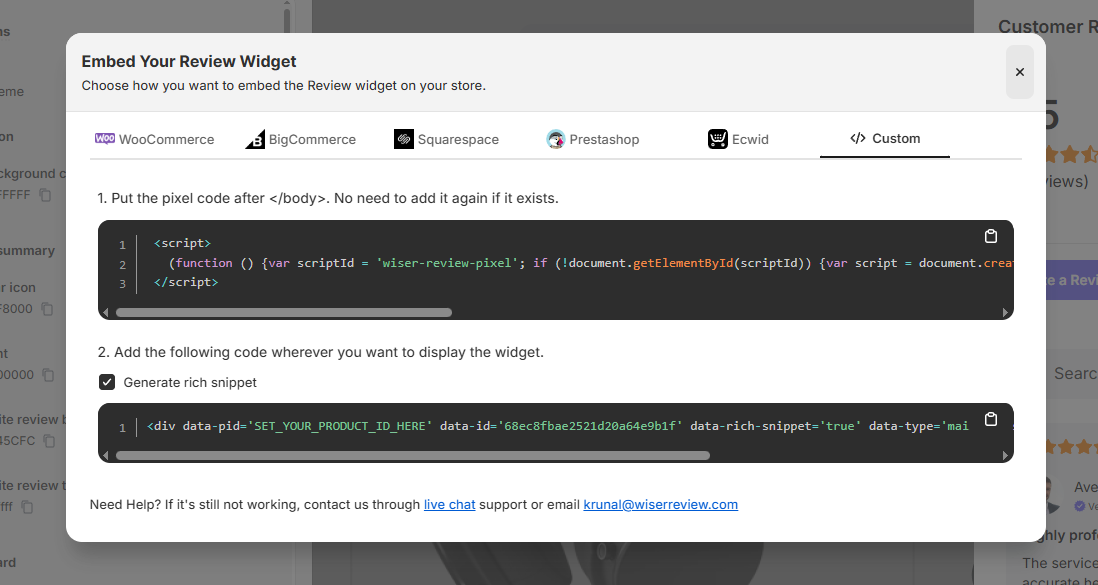
Click Install and copy the provided script (embed) code: Global Script (add once in site header) and Widget Embed Code.
Step 4: Add Widget to Product Page
Paste the embed code into the product page’s HTML section, then add the widget to the page.
Step 5: Publish Your Widget
Click Publish Widget inside WiserReview.
Your product page will now display live customer reviews.
Examples from Top Brands
1. Amazon: The Power of Filtering & Data
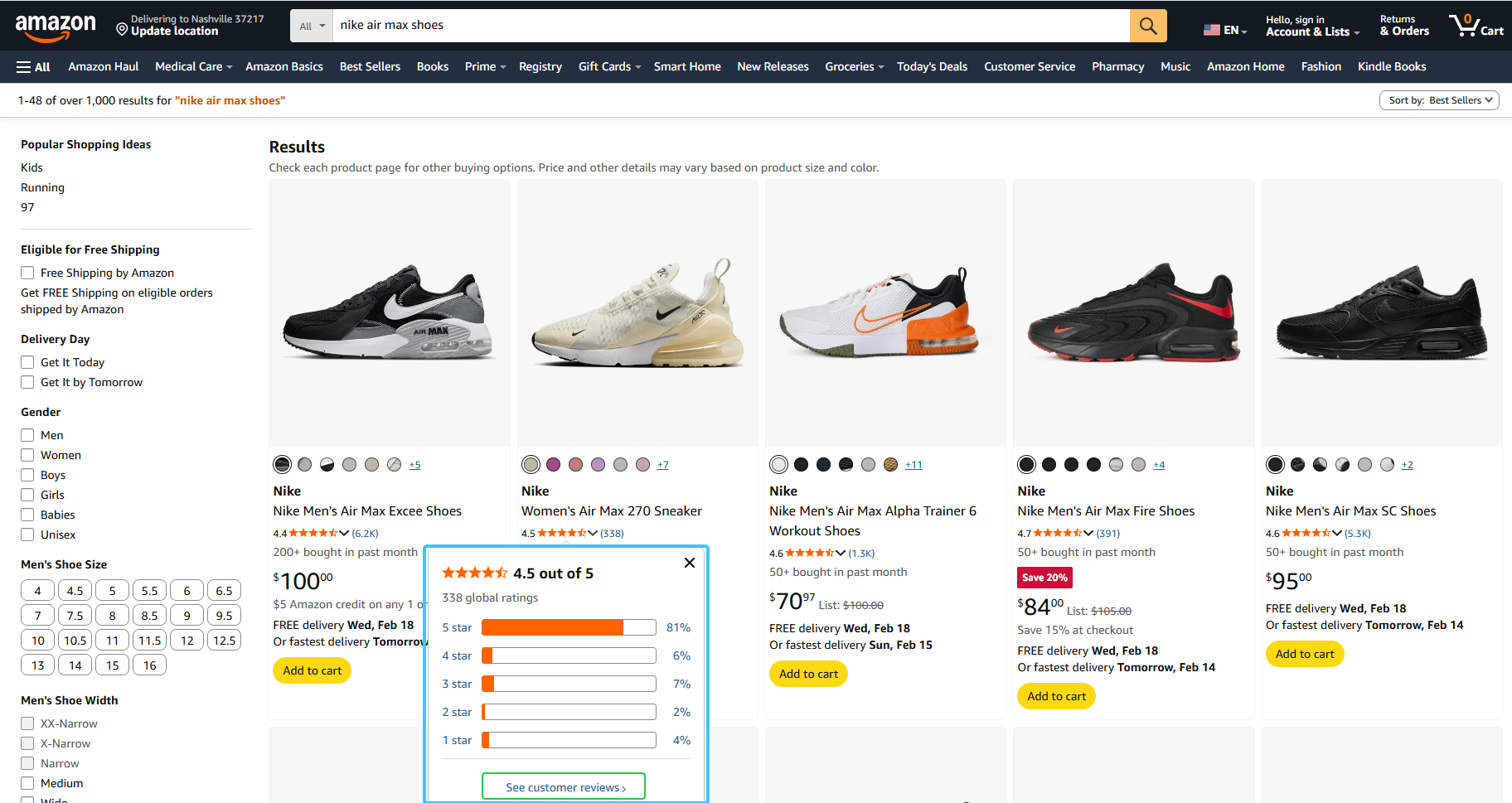
Amazon shows the average star rating and total number of reviews right under the product title. Buyers can scroll down to view detailed star ratings, filter reviews by rating or format, and see “Most Helpful” reviews first to quickly answer common questions.
Key Feature: Their “Review Highlights” use AI to summarize common sentiments (e.g., “Customers say this is easy to assemble”).
By placing a “Most Helpful Positive” and a “Most Helpful Critical” review side by side, they build immediate credibility through transparency.
2. Sephora: The “Attribute” Specialist
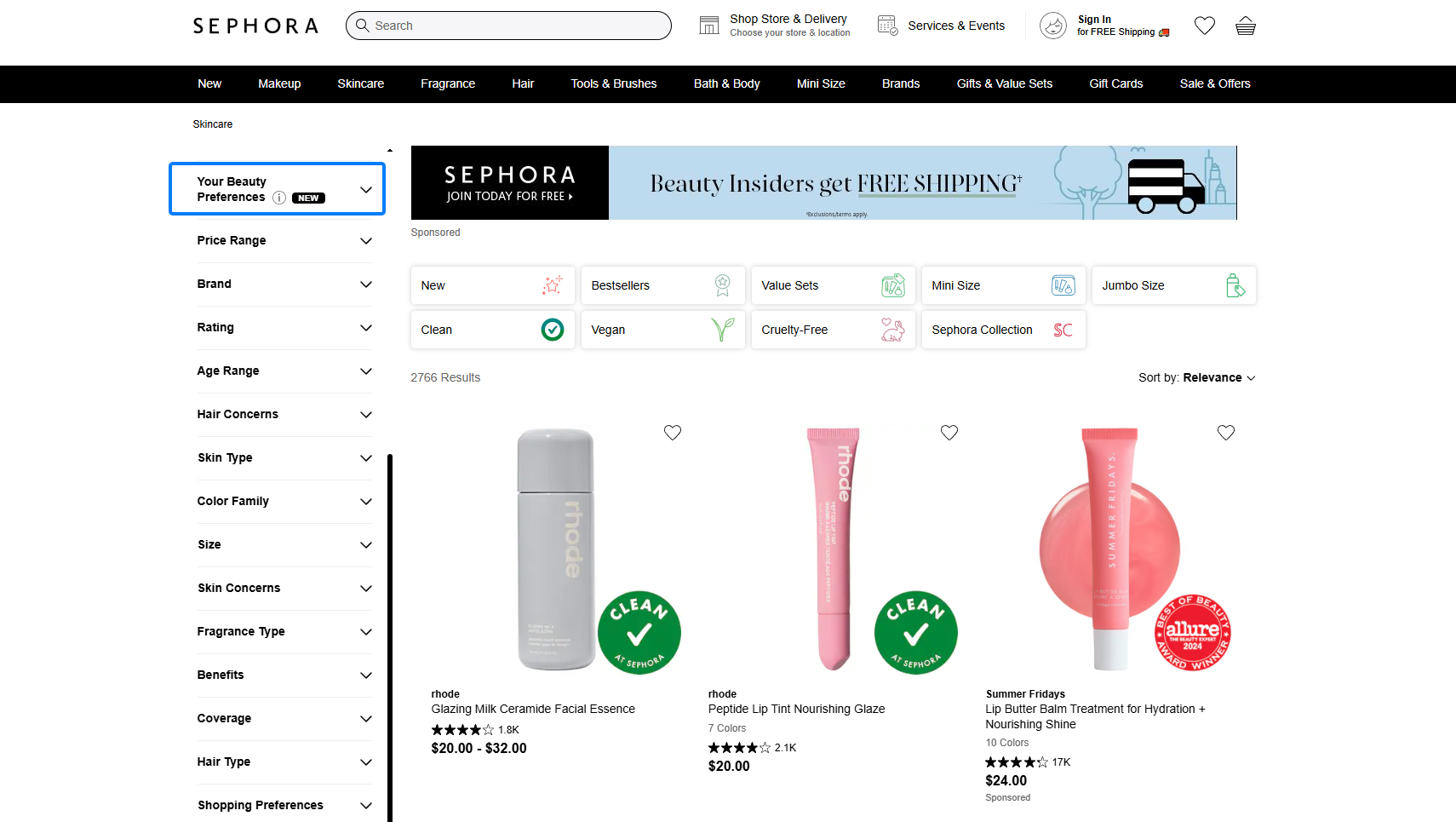
For beauty and personal care, Sephora is excellent at offering reviews in context. They recognize that a 5-star review is not very helpful unless the reviewer has similar features to the customer.
They offer “Reviewer Attributes” such as skin type, eye color, and age group, which are displayed alongside each review.
Their “Beauty Board” allows customer-submitted photos to be incorporated directly into the product page, featuring how a product looks on actual people, not just models.
3. REI: Performance & Technical Verification
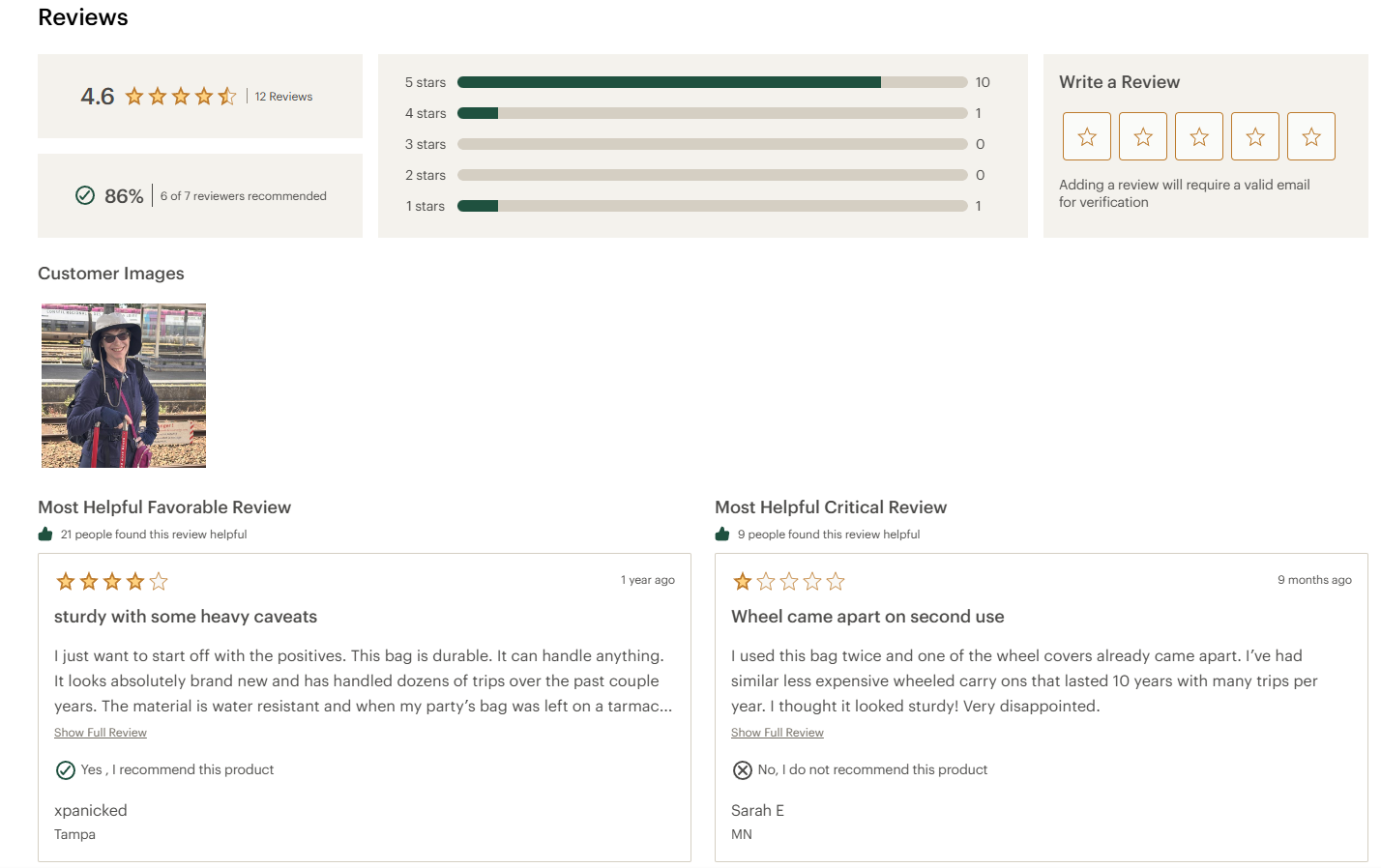
REI focuses on authenticity for outdoor gear, where quality can be a matter of safety. Their layout is designed to prove that the product performs in the wild.
Key Feature: They prominently display a “Verified Purchase” badge and include a “Pros/Cons” list summarizing all user feedback.
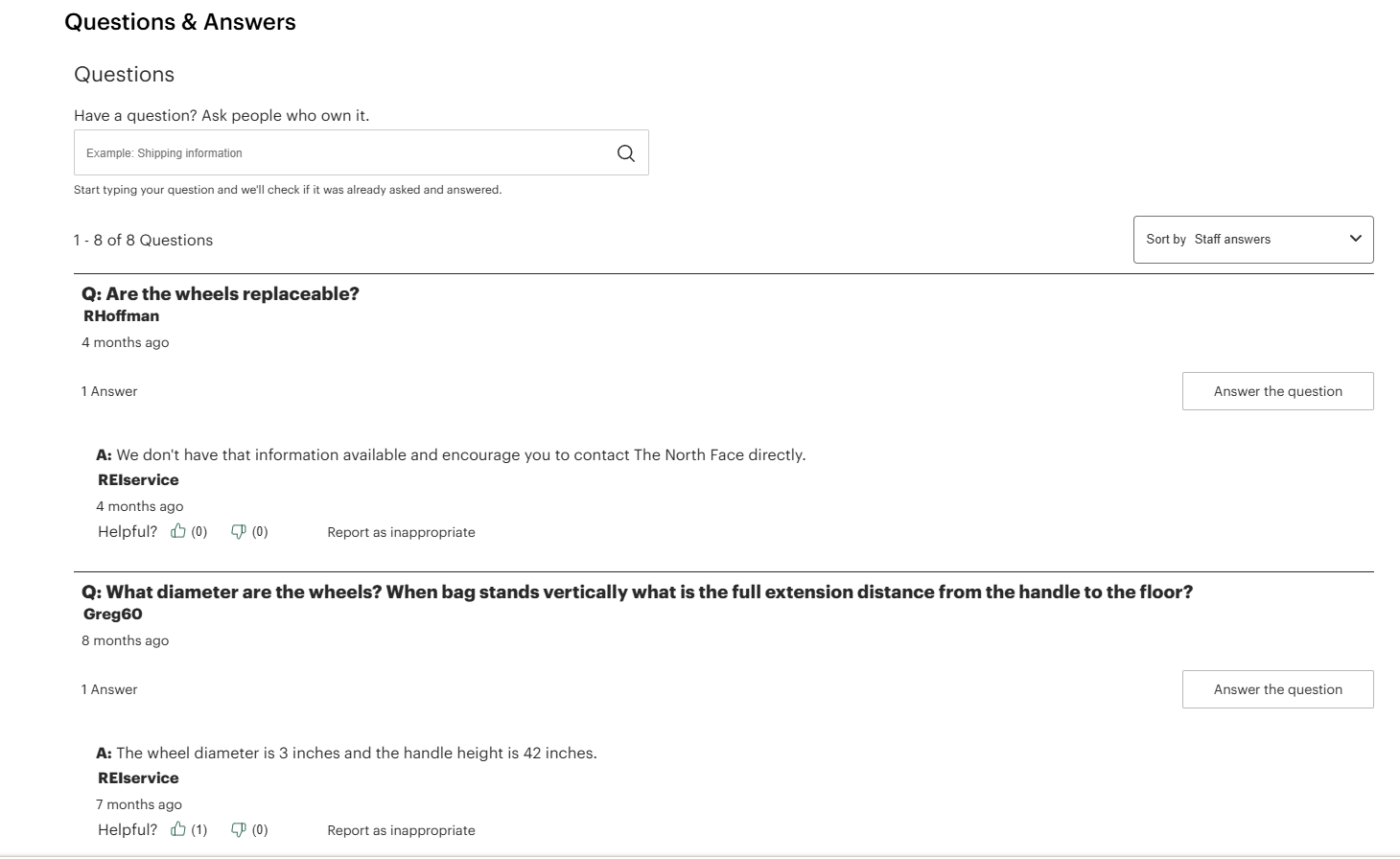
Engagement: Their “Questions & Answers” section sits next to the reviews, allowing the community (and brand experts) to address technical questions in real time.
All your reviews in one place
Collect reviews, manage every response, and display them where they matter most.
Start Free →Wrap Up
Display your reviews where consumers make purchasing decisions, not just where it is easy to program them. The best brands don’t just collect reviews and display them at the bottom of the page.
They place their star ratings above the fold, integrate their review snippets into their product sliders, offer advanced filtering for researchers, display visual proof from actual customers, and use intelligent callouts to inform purchasing decisions.
WiserReview provides you with all these features in one tool: automated collection, intelligent moderation, and flexible display options that are consistent with how the best brands display social proof.
Your reviews are already your strongest sales tool. Now you just need to display them as the top brands do.
Frequently asked questions
Show star ratings and review count near the product title. Add a full review section below the product details with filters.
Start once you have 3 to 5 real reviews. A few honest reviews build more trust than none.
Use collapsible sections, sticky star ratings, and swipeable photos. Keep it simple and easy to scroll.
No, if they load after your main content. Properly built widgets do not hurt page speed or SEO.

Krunal